Finding matches with the assistant
The Matcher tab of the AI Assistant looks for good matches between your resources and the rest of the catalogue: offers that could feed your projects, projects that could use your offers, and offers that go well with yours.
Three ways to start a search
The Matcher opens on a card Find an offering or a project with AI with three buttons.
| Button | What it searches |
|---|---|
| Run a search | What you describe in words. Type your need in the field at the bottom of the panel, then click the button. |
| Match from a project | The catalogue offers that complete one of your projects |
| Match from an offering | The projects that look for what you publish, and the offers that go with yours |
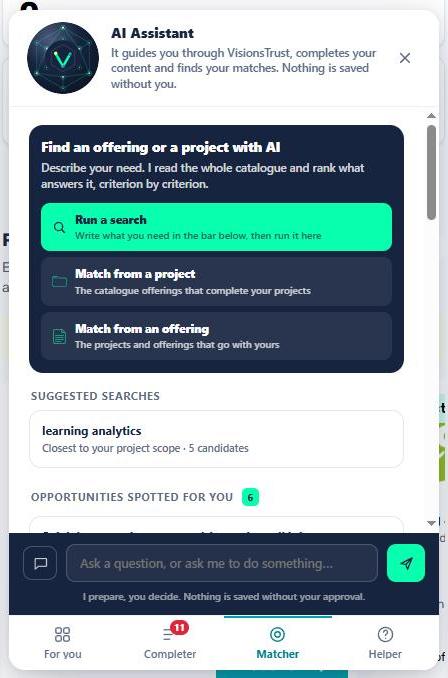
Below the card, the Matcher also shows:
- Suggested searches, prepared from your offers and projects;
- Opportunities spotted for you, such as a project looking for your kind of data, or an offer that fits one of your projects. Ignore hides an opportunity;
- Best matches from the catalogue;
- Recent reports, your previous searches.
Reading the search results
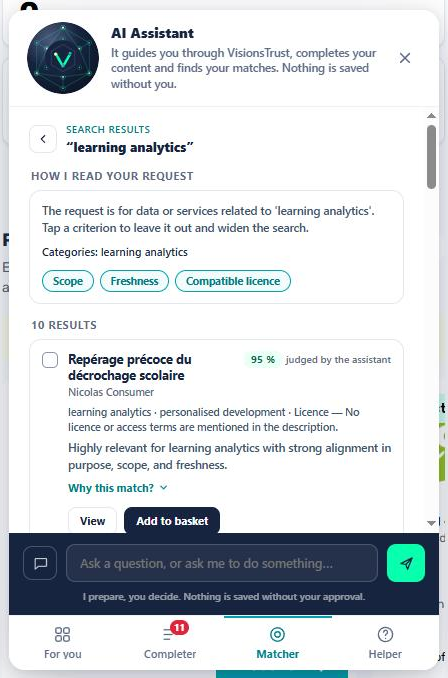
At the top of the results, How I read your request shows how the assistant understood your search: a short summary and the criteria it extracted (categories, area, keywords, freshness, licence, type of offer).
Three criteria can be switched off to widen the search: Scope, Freshness and Compatible licence. Click a criterion to leave it out; click it again to bring it back. If no result remains, the assistant tells you which criterion set everything aside.
Each result card shows the offer or project, its organisation, a score, and a one-line reason.
Understanding the match score
The score is shown as a percentage, followed by one of two mentions:
| Mention | How the score was obtained |
|---|---|
| match | Calculated from the information of the offer: its scope (categories), how recently it was updated, and its licence |
| judged by the assistant | The assistant read both descriptions and assessed how well they answer each other |
A criterion that cannot be assessed is left out of the calculation. When fewer than two criteria can be assessed, the card shows To assess instead of a percentage: not enough information is filled in to judge the match. Completing your offer or project gives a more reliable score (see Making your offers fit a project).
Click Why this match? on a card to see the detail, criterion by criterion. Ask the assistant then opens a conversation that explains the match in plain language.
Note
A score is an aid to sort the catalogue, not a guarantee. Read the offer and its terms before you start a negotiation.
Acting on a result
From a result card you can:
- open the offer or project;
- Add to basket: the offer joins your basket, and you can still remove it before sending your requests;
- tick several results, then Find similar offerings to start a new search from your selection.
Search reports
Each search is kept as a search report, with the number of offers analysed and the number of strong matches. Find them under Recent reports, or See all for the full list grouped by period.
Opening a report runs the search again with the same criteria, so the results reflect the catalogue as it is today. If you change the criteria of a search, Save this report records the new version.
Comparing offers or projects
From the catalogue, the assistant can compare two offers or two projects. Select two rows in the comparison view of the For you tab: the assistant sets them side by side (what they describe, freshness, price, commitments, conditions of access) and gives a verdict: they complete each other, they partly overlap, or the second adds nothing.
Matches outside the panel
The same matches appear on your pages: your dashboard recommendations, and the matching sections of your projects, where Offerings the assistant selected lists the offers ranked for the project with the reason for each.
How to get better matches
- Choose your categories carefully when you create an offer or a project: they are the first criterion of every match.
- Write a description that says what the offer contains and who it is for. The assistant reads it to judge the match.
- Keep your offers up to date: freshness is part of the score.
- For a project, fill in the data and services you are looking for.
Only published offers and projects are matched. A draft is never proposed to other participants.